

Website Not Opening? 10 Common Issues + Fixes (2026)
You’re staring at your screen, waiting for a website to load. The loading icon spins endlessly, or worse, you see an error message that makes no sense. We’ve all been there, and it’s incredibly frustrating, especially when you need to access something urgently.
Here’s the thing: website loading failures happen for dozens of different reasons, but you don’t need to be a tech expert to fix most of them. According to recent internet usage studies, the average person encounters website loading errors at least once a week. That’s why understanding these common issues can save you hours of frustration.
Let’s dive into the real reasons websites fail to open and walk through practical solutions that actually work.
1. Internet Connection Problems: The Hidden Culprits
Your internet connection might look fine at first glance, but there are several sneaky issues that can prevent websites from opening while making you think you’re still connected.
Partial connectivity is one of the trickiest problems. Your device shows it’s connected to WiFi, but there’s no actual internet access. This happens when your router loses connection to your ISP, but your device stays connected to the router itself. It’s like being connected to a phone with a dead battery.

Another common issue is bandwidth throttling. Some internet providers slow down your connection during peak hours or when you’ve used a certain amount of data. When your speed drops too low, websites simply time out before they can load.
Comprehensive fix:
First, test your actual internet speed using a tool like Speedtest.net. If you’re getting less than 1 Mbps, that’s your problem right there. Compare this to what you’re paying for in your internet plan.
Next, try the airplane mode trick on mobile devices or WiFi on/off toggle on computers. This forces your device to completely reconnect and can resolve authentication issues with your router.
Check your router’s lights. Most routers have an “Internet” or “WAN” light that should be solid green. If it’s amber, red, or blinking, there’s a connection problem between your router and your ISP.
Finally, connect your device directly to your modem using an ethernet cable, bypassing the router entirely. If websites load fine this way, your router is the problem and may need a firmware update or replacement.
2. Website Server Issues: Understanding Downtime
When a website’s server goes down, there’s literally nothing you can do except wait. But understanding why this happens can help you know when to keep trying and when to give up temporarily.
Servers crash for many reasons: too much traffic (the “hug of death”), scheduled maintenance, cyberattacks, hardware failures, or software bugs. Major websites have backup servers, but smaller sites might go completely dark during issues.

What most people don’t know is that you can differentiate between a temporary glitch and a serious outage. If you get a “500 Internal Server Error,” that’s usually temporary. A “503 Service Unavailable” often means scheduled maintenance. But “DNS_PROBE_FINISHED_NXDOMAIN” suggests the entire website might be gone.
Comprehensive fix:
Use multiple checking services like DownDetector.com, IsItDownRightNow.com, or simply search “[website name] down” on Twitter or web search. This tells you if thousands of others have the same problem.
Try accessing the website through a web proxy service like HideMyAss or ProxySite. If it loads there but not on your direct connection, the problem isn’t that the site is down—it’s something with your network or location.
Check the Wayback Machine (archive.org) to see if the site still exists or if it’s been permanently shut down. If there are no recent captures, the site might be abandoned.
For critical business websites, look up the company’s official social media accounts. Many businesses announce outages and expected restoration times on Twitter or Facebook.
3. Browser Cache Corruption: When Storage Betrays You
Your browser’s cache is supposed to make browsing faster by storing copies of websites locally. But when these stored files become corrupted—which happens more often than you’d think—they can completely prevent websites from loading correctly.
This is especially common after browser crashes, unexpected shutdowns, or when your hard drive is nearly full. The cache files get damaged mid-write, creating a corrupted version that your browser keeps trying to use.

There’s also the issue of version conflicts. If a website updates its design or code but your browser keeps loading the old cached version, you might see a broken page or nothing at all. The website expects your browser to request new files, but your browser insists on using the old ones.
Comprehensive fix:
Go beyond just clearing cache. In Chrome, go to Settings > Privacy and Security > Clear Browsing Data. Select “Advanced” tab, choose “All Time,” and check: Browsing history, Cookies, Cached images and files, and Hosted app data. This is more thorough than the basic clear.
For persistent problems, try hard refresh techniques that bypass the cache entirely:
- Windows: Ctrl + F5 or Ctrl + Shift + R
- Mac: Command + Shift + R
- These force your browser to download fresh copies of everything.
If you’re technical, you can manually delete cache folders. Chrome’s cache is typically in:
- Windows: C:\Users[YourName]\AppData\Local\Google\Chrome\User Data\Default\Cache
- Mac: ~/Library/Caches/Google/Chrome/Default/Cache
After clearing, restart your browser completely (don’t just close the window—exit the application) before trying the website again.
4. Browser Compatibility and Updates
Websites are built using evolving technologies, and older browsers can’t understand newer code. If your browser is more than a year out of date, you’re likely to encounter loading problems on modern websites.
Some websites deliberately block older browsers for security reasons. Banking sites and payment processors are particularly strict about this because outdated browsers have known security vulnerabilities.
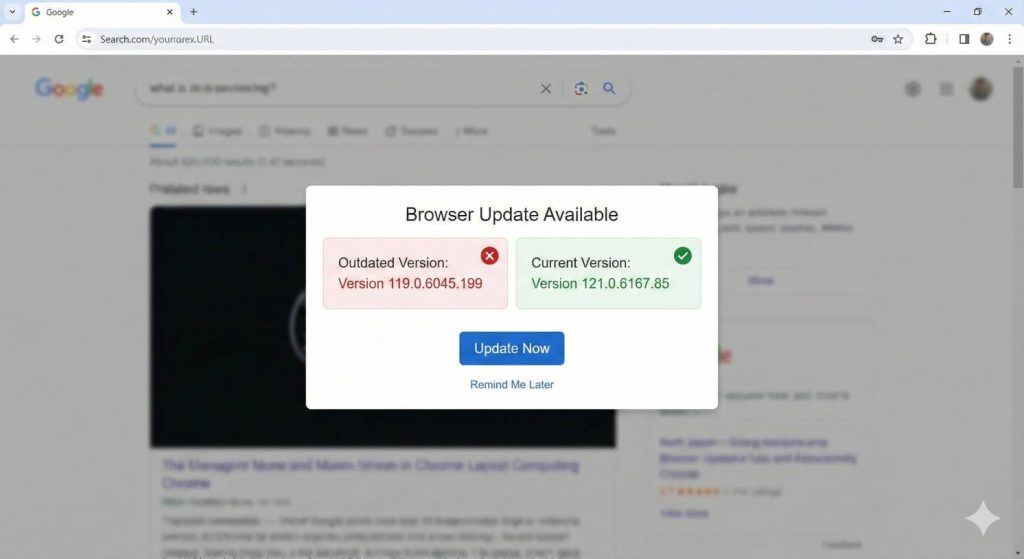
There’s also the issue of rendering engines. Chrome and Edge use Blink, Firefox uses Gecko, and Safari uses WebKit. Sometimes websites are optimized for one engine and break in others. This isn’t your fault—it’s poor web development—but it affects you nonetheless.
Comprehensive fix:
Check your browser version by typing “about:version” in Chrome, “about:support” in Firefox, or checking Help > About in any browser. Compare this to the latest version on the browser’s official website.
Enable automatic updates in your browser settings. In Chrome: Settings > About Chrome. In Firefox: Options > General > Firefox Updates. This prevents you from falling behind again.
If you’re on a work computer where you can’t update browsers, use a portable browser version that doesn’t require admin rights. Portable versions of Firefox and Chrome can run from a USB drive with full functionality.
Consider keeping two browsers installed. If your primary browser fails on a specific site, having a backup browser (like Firefox alongside Chrome) gives you an immediate alternative without troubleshooting.
5. Browser Extensions Interference: The Silent Blockers
Extensions are powerful tools, but they inject code into every webpage you visit. This makes them a common source of conflicts and loading failures. The problem is that you often can’t tell which extension is causing trouble.
Ad blockers are the most frequent culprits. They use filter lists to block ads, but sometimes they’re overly aggressive and block legitimate content needed for a page to function. One blocked script can break an entire website.
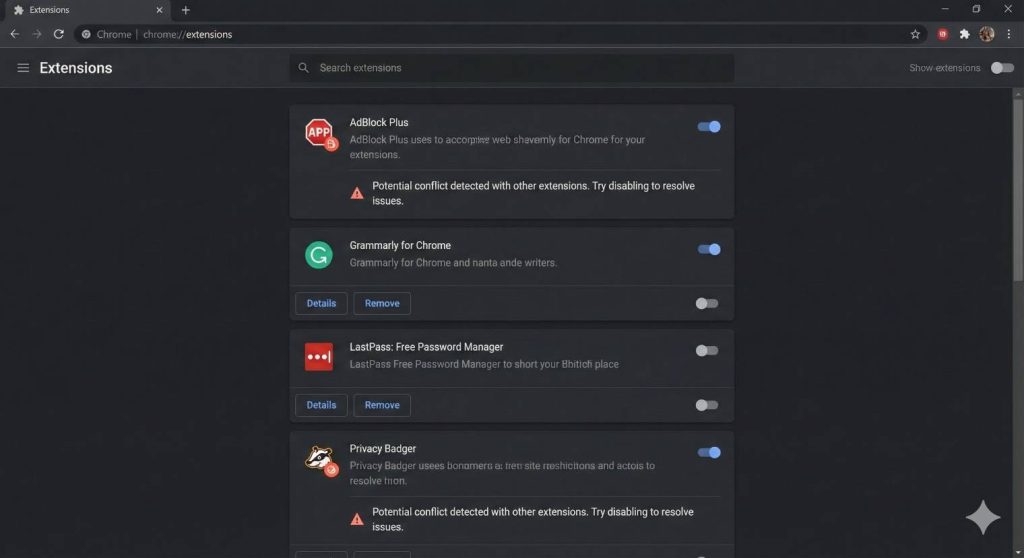
Privacy extensions like Privacy Badger or Ghostery, VPN extensions, and security tools all modify how websites load. Even harmless-seeming extensions like weather widgets or shopping comparison tools can interfere with specific sites.
Comprehensive fix:
Open incognito/private mode (Ctrl+Shift+N in Chrome, Ctrl+Shift+P in Firefox). Extensions are automatically disabled here. If the website works, an extension is definitely your problem.
To identify the specific extension, disable all of them and enable them one at a time, testing the website after each. This is tedious but effective.
Check your extension’s settings for whitelisting options. Most ad blockers let you disable blocking on specific domains. Add the problematic website to this whitelist rather than disabling the extension entirely.
Review your extension list regularly and remove ones you don’t actively use. Go to chrome://extensions or about:addons and ask yourself: “Have I used this in the past month?” If not, remove it. Each extension slows down your browser and increases conflict risks.
For ad blockers specifically, try switching from multiple tools to just one quality extension like uBlock Origin. Running multiple ad blockers simultaneously often causes more problems than it solves.
6. DNS Resolution Failures: When Names Don’t Translate
DNS is one of the internet’s most critical systems, yet most people don’t understand it. When you type a website address, DNS servers translate that human-readable name into a numeric IP address that computers use. If DNS fails, it’s like having a phone number but no way to call it.
Your DNS requests go through multiple layers: your device’s DNS cache, your router’s DNS cache, and your ISP’s DNS servers. A failure at any point breaks the chain.
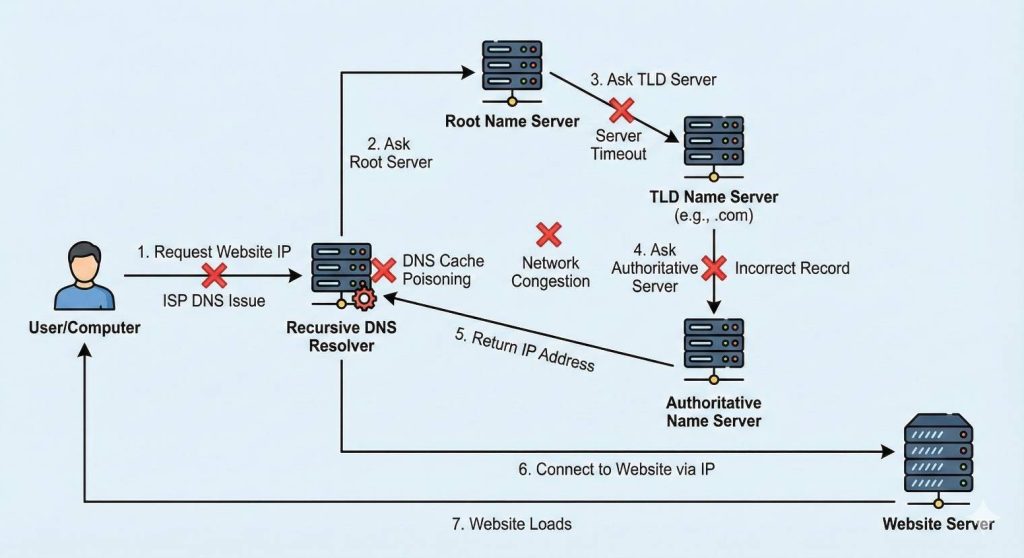
ISP DNS servers are notoriously unreliable. They’re often overloaded, poorly maintained, or configured to redirect failed lookups to advertising pages (a controversial practice called DNS hijacking). Some ISPs also use DNS to block certain websites, creating “soft censorship” that looks like a technical failure.
Comprehensive fix:
Switch to public DNS servers that are faster and more reliable. The best options are:
- Cloudflare: Primary 1.1.1.1, Secondary 1.0.0.1 (fastest, privacy-focused)
- Google: Primary 8.8.8.8, Secondary 8.8.4.4 (very reliable)
- Quad9: Primary 9.9.9.9, Secondary 149.112.112.112 (security-focused, blocks malicious sites)
On Windows, change DNS by: Settings > Network & Internet > Change adapter options > Right-click your connection > Properties > Internet Protocol Version 4 (TCP/IPv4) > Properties > Use the following DNS server addresses.
On Mac: System Preferences > Network > Select your connection > Advanced > DNS tab > Click + to add new DNS servers.
On your router (affects all devices): Access your router’s admin panel (usually 192.168.1.1 or 192.168.0.1), find WAN or Internet settings, and change DNS server addresses there.
After changing DNS, flush your DNS cache (covered in detail in issue #8) to ensure your system uses the new servers immediately.
Test different DNS servers to find the fastest for your location using DNS Benchmark tools like Namebench or GRC’s DNS Benchmark software.
7. Firewall and Antivirus Overblocking
Security software is designed to protect you, but it can become overprotective to the point of dysfunction. Modern security suites scan every bit of data going in and out of your computer, and sometimes they misidentify legitimate websites as threats.
This is particularly common with newer websites, sites using certain technologies (like WebSockets), or sites with SSL certificate issues. Your security software sees something unfamiliar and blocks it “just to be safe.”
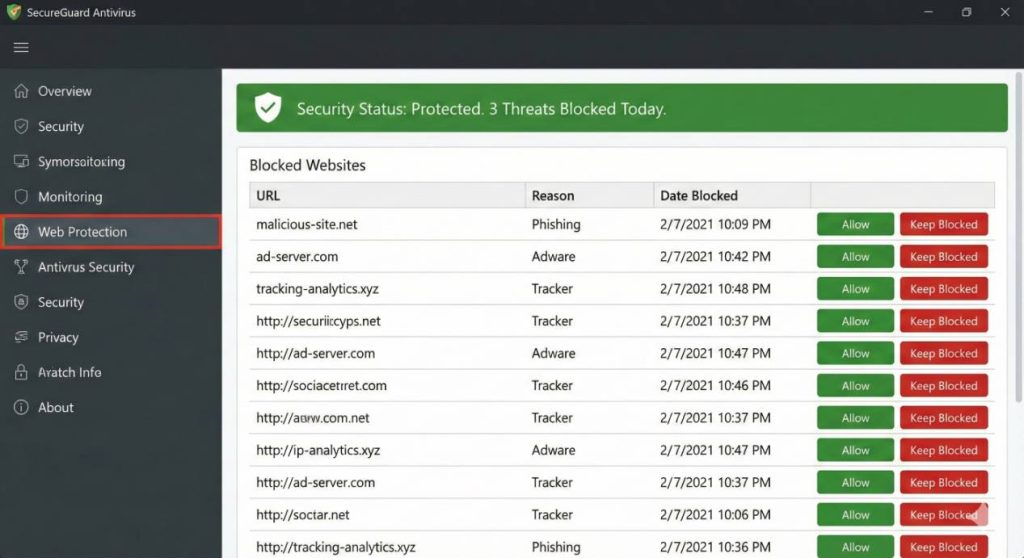
Some security software uses “web filtering” that categorizes websites and blocks entire categories. If a legitimate site is miscategorized, it gets blocked. Educational sites sometimes get blocked as “streaming,” news sites as “social media,” or development tools as “hacking.”
Windows Defender Firewall, in particular, can block programs from accessing the internet without telling you clearly. You just see websites that won’t load in specific browsers.
Comprehensive fix:
Don’t just disable your security software—that’s a security risk. Instead, check its logs and blocked items list. Most antivirus programs have a “Quarantine” or “Blocked items” section showing what they’ve stopped. Look for the website’s domain name there.
Add the website to your security software’s whitelist or exceptions list. In Windows Defender, go to: Windows Security > Virus & threat protection > Manage settings > Exclusions > Add or remove exclusions.
For firewall-specific issues, check allowed apps: Windows Security > Firewall & network protection > Allow an app through firewall. Make sure your browser is checked for both Private and Public networks.
If you’re using third-party security suites like Norton, McAfee, or Kaspersky, look for “Web Protection” or “Online Security” settings. These often have separate website blocking features you need to configure.
Create application rules rather than turning off protection entirely. Allow your specific browser application through the firewall while keeping protection active for everything else.
If the problem persists, temporarily disable real-time scanning (not the entire antivirus) and test. If the website loads, you’ve confirmed the antivirus is the issue and can work on proper exclusion rules.
8. DNS Cache Poisoning and Corruption
Your computer stores DNS lookup results locally to speed up future visits to the same websites. This local storage is called the DNS cache. But this cache can become corrupted or, in rare cases, deliberately poisoned by malware to redirect you to fake websites.
DNS cache becomes outdated when websites change servers or IP addresses. Your computer keeps trying to use the old address, which no longer works. This is especially common after you’ve cleared your browser cache but the DNS cache remains untouched.

Comprehensive fix:
On Windows, the command is simple but you need administrator access:
- Press Windows key + X, select “Command Prompt (Admin)” or “Windows PowerShell (Admin)”
- Type:
ipconfig /flushdns - You’ll see “Successfully flushed the DNS Resolver Cache”
- Additionally, run:
ipconfig /registerdnsto refresh your DNS registration - Then:
ipconfig /releasefollowed byipconfig /renewto reset your IP address
On Mac, it’s more complex and varies by OS version:
- macOS Big Sur and later:
sudo dscacheutil -flushcache; sudo killall -HUP mDNSResponder - You’ll need to enter your admin password
- No confirmation message appears, but it works
On Linux:
- Ubuntu/Debian:
sudo systemd-resolve --flush-caches - Or:
sudo /etc/init.d/nscd restartif using nscd
For browser-specific DNS cache, in Chrome type chrome://net-internals/#dns in the address bar and click “Clear host cache.” Firefox doesn’t cache DNS separately from the system.
After flushing, restart your browser completely before testing the website. The combination of flushed system DNS and fresh browser session often solves persistent loading issues.
If you suspect DNS poisoning (websites redirecting to strange pages, especially login pages that look slightly off), run a full malware scan immediately and consider changing your DNS to Cloudflare or Google’s servers.
9. Malware, Browser Hijackers, and Unwanted Programs
This is more serious than most people realize. Malware that affects web browsing is increasingly common, and it doesn’t always announce itself with obvious symptoms. Some malware is specifically designed to be subtle.
Browser hijackers change your homepage, redirect searches, or inject ads into websites that don’t normally have them. They can also prevent you from accessing security websites, antivirus sites, or any tools you’d use to remove them—a deliberate sabotage.
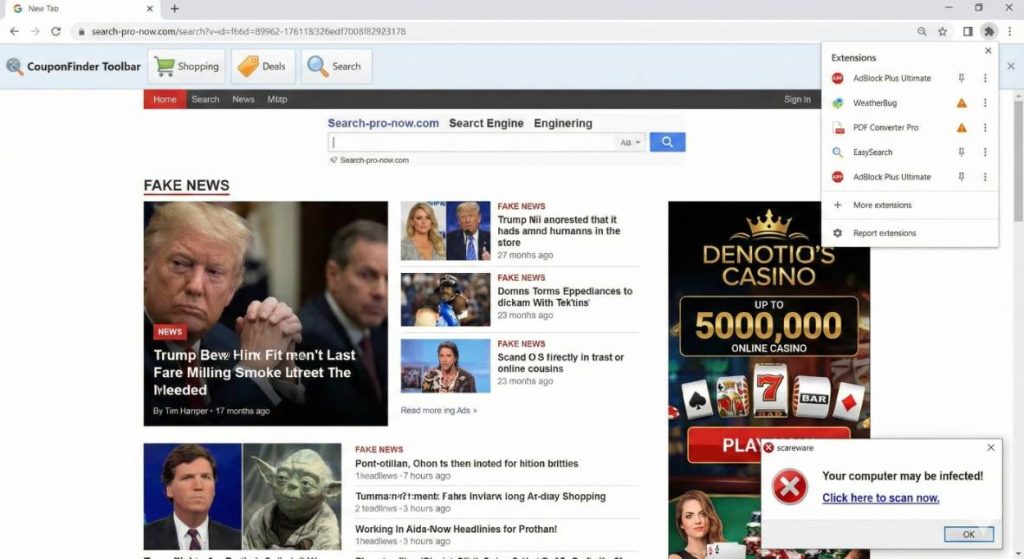
Some malware modifies your HOSTS file, which is like a local DNS override. It can redirect specific websites to fake versions or simply block them entirely. Cybercriminals use this to redirect banking sites to phishing pages that steal your credentials.
DNS changer malware is particularly insidious. It changes your DNS settings to malicious servers controlled by attackers. Every website request goes through their servers, giving them complete visibility and control over your browsing.
Comprehensive fix:
Start with your installed programs list. Press Windows key + R, type appwiz.cpl, and press Enter. Sort by “Install Date” and look for unfamiliar programs installed recently. Uninstall anything suspicious, especially programs you don’t remember installing.
Check your browser’s installed extensions again, specifically looking for ones you didn’t install. Malware often installs extensions with legitimate-sounding names like “Helper,” “Fast,” or “Safe.”
Run multiple malware scanners—don’t rely on just one:
- Windows Defender’s full scan (built-in)
- Malwarebytes (free version works fine) for comprehensive malware detection
- AdwCleaner by Malwarebytes specifically targets browser hijackers and adware
- HitmanPro for a second opinion scan
Check your HOSTS file manually. Open Notepad as administrator, then open this file:
- Windows: C:\Windows\System32\drivers\etc\hosts
- Mac: /etc/hosts Look for entries that redirect websites. A clean HOSTS file is mostly empty with just a few lines starting with #. If you see dozens of entries or specific website names, that’s suspicious.
Reset your browser completely if malware persists. In Chrome, this is Settings > Advanced > Reset settings > Restore settings to their original defaults. This removes extensions, clears cache, and resets everything without deleting bookmarks.
Change your DNS settings to trusted servers (covered in issue #6) to ensure you’re not using compromised DNS.
As a last resort for severe infections, use your browser’s built-in cleanup tool. Chrome has one at: Settings > Advanced > Reset and clean up > Clean up computer.
10. Network Configuration and Advanced Issues
These are the problems that survive all the simple fixes. They’re less common but incredibly frustrating because they’re not obvious.
MTU (Maximum Transmission Unit) misconfiguration is surprisingly common. MTU is the largest packet size your network can transmit. If it’s set wrong, some websites load fine while others fail mysteriously. This often happens with certain routers, VPN connections, or PPPoE internet connections.
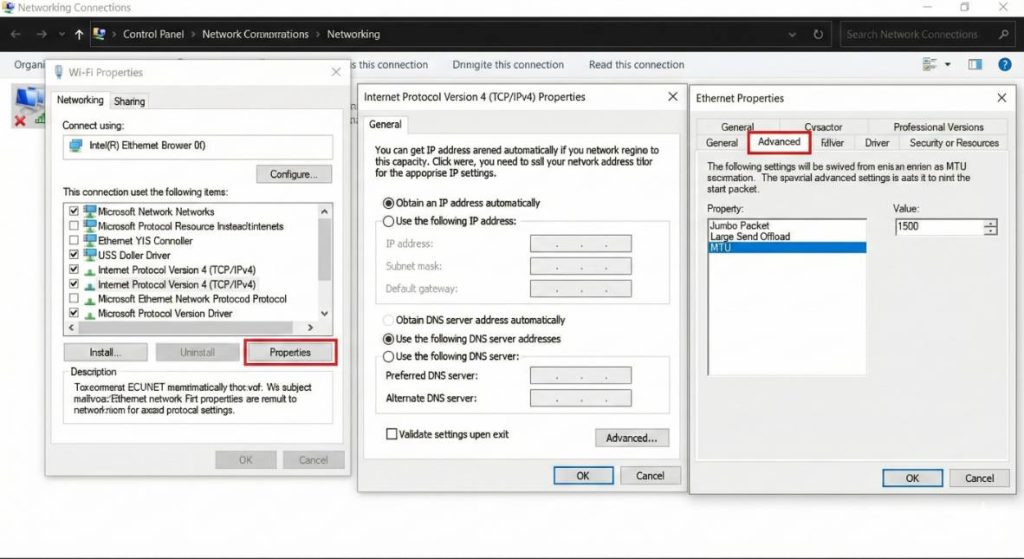
Proxy settings can be changed without your knowledge, either by malware or by misconfigured software. If your system is set to use a proxy that doesn’t exist or isn’t working, websites simply won’t load.
IPv6 issues are increasingly common. Some networks have IPv6 partially configured, causing conflicts. Your computer tries to connect via IPv6, fails, and sometimes doesn’t fall back to IPv4 properly.
Router firmware bugs can cause specific websites to fail while others work fine. Older routers may not properly handle modern web technologies or may have packet inspection features that interfere with certain sites.
Comprehensive fix:
Check for proxy settings: Windows Settings > Network & Internet > Proxy. Everything should be “Off” unless you deliberately use a proxy. If “Automatically detect settings” is on, try turning it off. If “Use a proxy server” is on without your knowledge, turn it off immediately.
Test with different network connections to isolate the issue. Use your phone’s mobile hotspot to connect your computer. If websites load fine on mobile data but not on your regular WiFi, the problem is definitely with your home network, not your computer.
Optimize MTU settings if you suspect packet size issues:
- Open Command Prompt as administrator
- Type:
netsh interface ipv4 show subinterfaces - Note your MTU value (usually 1500)
- Test different values:
netsh interface ipv4 set subinterface "Wi-Fi" mtu=1492 store=persistent - Try values like 1492, 1472, or 1452
- Test websites after each change
Disable IPv6 temporarily to test if it’s causing issues: Network adapter properties > uncheck “Internet Protocol Version 6 (TCP/IPv6).” Test your problematic websites. If they work now, IPv6 was interfering.
Update your router’s firmware. Access your router’s admin panel (usually 192.168.1.1 or 192.168.0.1), look for “Firmware Update” or “Router Update” in settings. Manufacturers fix bugs and compatibility issues in updates.
Try changing DNS servers on your router (affects all devices) rather than just your computer. This can solve family-wide browsing issues.
Reset network settings completely as a last resort:
- Windows: Settings > Network & Internet > Status > Network reset
- Mac: Delete network preferences files (requires technical knowledge)
- This wipes all network configurations and starts fresh
Consider QoS (Quality of Service) settings on your router if certain sites work during off-peak hours but fail during busy times. Some routers prioritize certain traffic over others, potentially blocking or severely limiting access to specific sites.
When Professional Help Is Needed
If you’ve worked through all these fixes and websites still won’t open, you may be dealing with:
ISP-level blocking or issues – Your internet provider might be having problems with specific routes to certain websites, or they may be blocking sites deliberately. Contact their support.
Regional internet infrastructure problems – Sometimes there are broader internet routing issues affecting how data travels across the internet backbone. These are rare but do happen.
Advanced network configurations – If you’re on a work, school, or public network, there may be content filtering, firewalls, or network policies you can’t override yourself.
Hardware failure – Your network adapter, router, or modem might be failing. Intermittent hardware problems create symptoms that look like software issues.
[Image suggestion: IT professional helping user with computer, or support ticket system interface]
Don’t hesitate to contact your ISP’s technical support. Despite their reputation, they can identify problems on their end that you can’t see, like signal issues, account problems, or network congestion affecting specific routes.
Prevention: Staying Ahead of Website Loading Issues
The best fix is preventing problems in the first place. Here are habits that keep website loading issues to a minimum:
Keep everything updated automatically: browsers, operating system, router firmware, and security software. Enable automatic updates wherever possible.
Regularly clear your browser cache and cookies—at least once a month. Set a calendar reminder if needed. This prevents accumulation of corrupted data.
Review installed extensions quarterly. If you haven’t used an extension in three months, remove it. This keeps your browser lean and reduces conflict potential.
Use reputable DNS servers like Cloudflare or Google rather than your ISP’s default. Make this change on your router to protect all devices at once.
Restart your router weekly. Set a schedule and stick to it. This simple action prevents many mysterious network issues from ever developing.
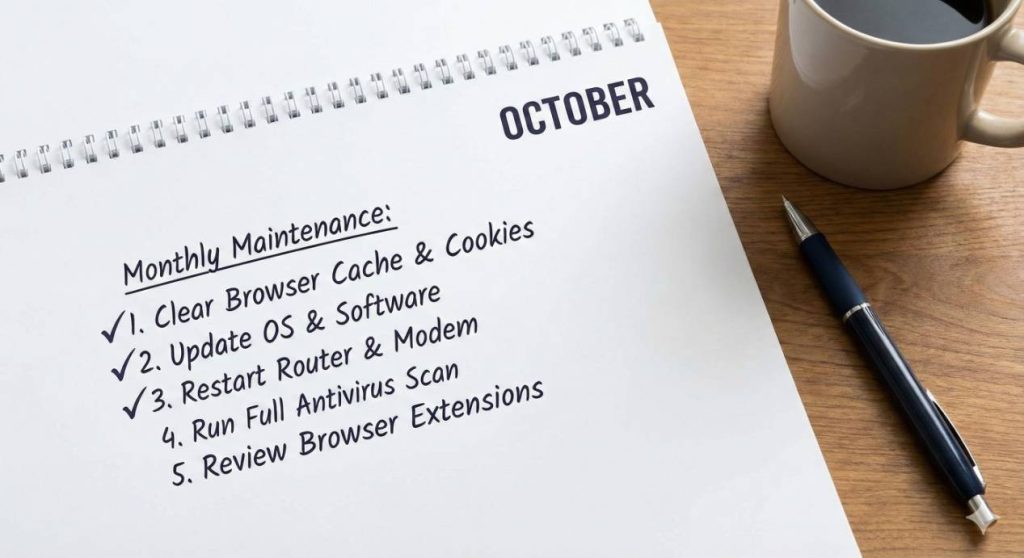
Understanding these ten issues transforms you from helpless to empowered when websites won’t open. You now have a systematic approach to diagnose and fix problems rather than random guessing. Bookmark this guide and reference it the next time you encounter loading issues—you’ll be back online faster than you thought possible.
— Switch to Dotpapa hosting for stable performance Click here